Game profiles
Every game can have its own settings. Games without a profile use Default.
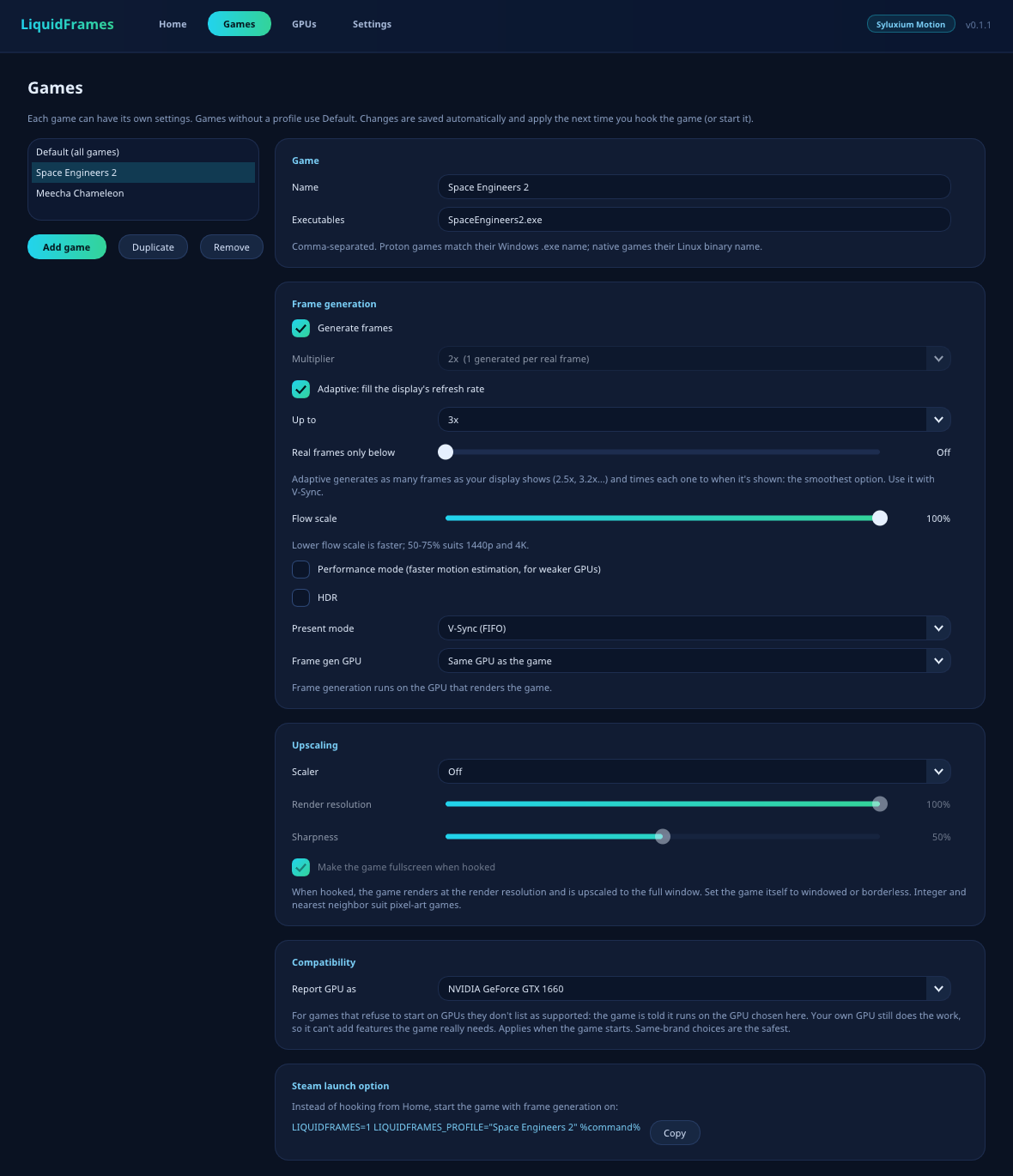
The profile list
- Default (all games) applies to every game that doesn't have its own profile.
- Add game creates a new profile; Duplicate copies the selected one; Remove deletes it.
Changes are saved straight away. They apply the next time you hook the game: unhook and hook it again from the Home page, no game restart needed. Games started with the LIQUIDFRAMES=1 launch option read their settings once at start, so restart those.
Game
| Setting | What it does |
|---|---|
| Name | Any name you like. It's also the name for LIQUIDFRAMES_PROFILE. |
| Executables | Which programs use this profile, comma-separated. Proton games match their Windows .exe name (e.g. SpaceEngineers2.exe), native games their Linux program name. |
Frame generation
| Setting | What it does |
|---|---|
| Generate frames | Turns frame generation on for this profile. |
| Multiplier | A fixed 2× to 8×: 2× adds one generated frame per real frame, 3× adds two, and so on. Not used when Adaptive is on. |
| Adaptive: fill the display's refresh rate | Generates as many frames as your display shows, at any ratio (2.5×, 3.2×…), and times each one. The smoothest option. See Adaptive mode. |
| Up to | The most adaptive mode may multiply, 2× to 8×. |
| Real frames only below | Adaptive mode only (greyed out otherwise). Off, or 1 to 120 fps. When the game drops below this, only its real frames are shown: fewer artefacts, but no added smoothness while the game is that slow. |
| Flow scale | 25 to 100%. Lower is faster; 50 to 75% suits 1440p and 4K. |
| Performance mode | Faster motion estimation, for weaker graphics cards. |
| HDR | For HDR output. Still new: if you have an HDR screen, we'd love a test report. |
| Present mode | How frames reach the screen. Use V-Sync (FIFO). See Adaptive mode & V-Sync. |
| Frame gen GPU | Same GPU as the game, or any other graphics card by name. See Two graphics cards. |
| My monitor is connected to the frame generation GPU | Appears when you choose another card. Tick it if your screen is plugged into that card. |
Upscaling
Scaler, render resolution and sharpness: see Upscaling.
Compatibility

| Setting | What it does |
|---|---|
| Report GPU as | For games that refuse to start on cards they don't list as supported. The game is told it runs on the card you choose here, for example a newer card from the same brand. Your own card still does all the work, so this can't add features a game really needs. Choosing the same brand is safest. Applies when the game starts. |
Steam launch option
Each game's page has a Steam launch option card with a Copy button, ready to paste into Steam.
Good starting points
| Goal | Settings |
|---|---|
| Smoothest | Generate frames on, Adaptive on, Up to 3×, Present mode V-Sync (FIFO) |
| Weaker or older graphics card | Flow scale 50 to 75%, Performance mode on |
| 1440p or 4K | Flow scale 50 to 75% |
| Fewer artefacts at low fps | Adaptive mode with Real frames only below about 30 fps |