Getting started
From download to a smoother game in a few minutes.
What you need
- 64-bit Linux with glibc 2.36 or newer: Ubuntu 24.04, Debian 12, Fedora, Arch and other current distributions
- A graphics driver with Vulkan 1.2 or newer: Mesa (RADV for AMD, ANV for Intel) or NVIDIA's driver. We're aiming at AMD Vega and NVIDIA GTX 600 series cards and newer.
- A game that uses Vulkan. That includes most Windows games running through Proton (DXVK and VKD3D-Proton are Vulkan underneath).
1. Download and install
Get the .tar.gz from the Download page, extract it and run the installer in its folder:
tar xf LiquidFrames-0.1.1-x86_64.tar.gz
cd LiquidFrames-0.1.1-x86_64
./install.sh
LiquidFrames now has a menu entry. No root needed. Prefer not to install? See Installing for the single-file .run and the AppImage.
2. Set up click to hook
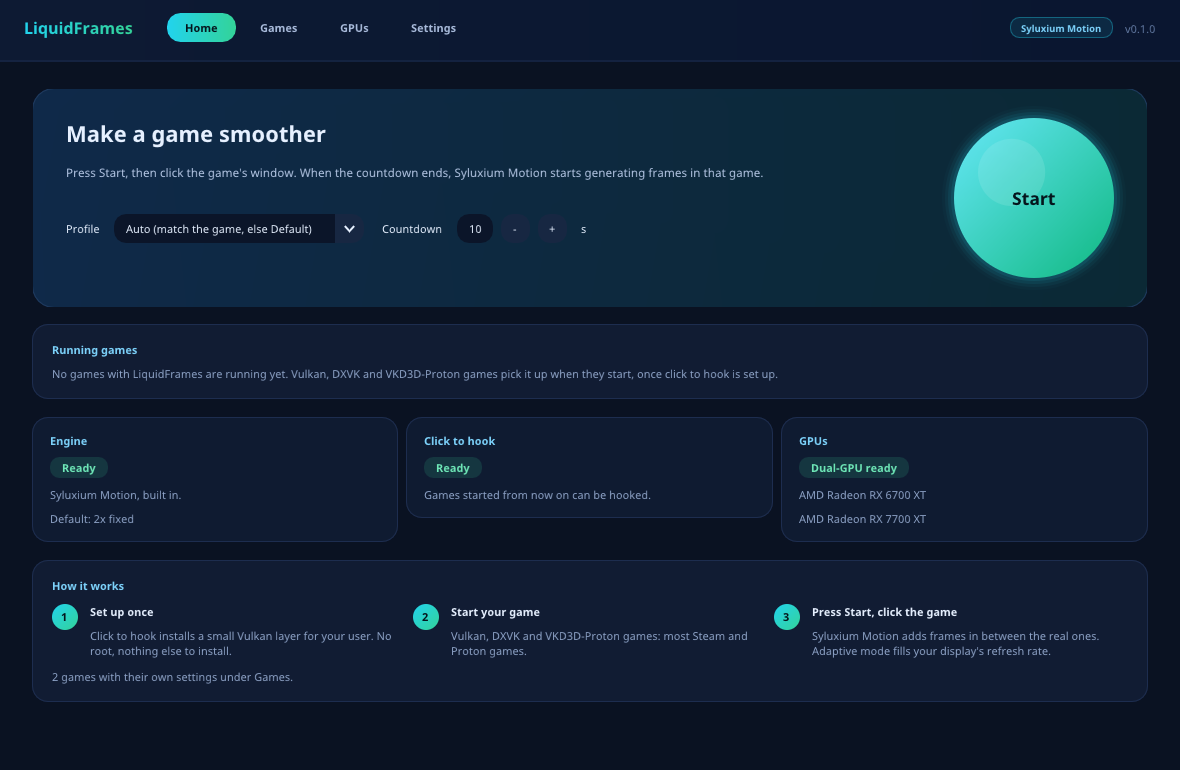
Open LiquidFrames. The first time, set up click to hook: under Settings → Click to hook, press Install. The Click to hook tile on the Home page then says Ready. It adds a small Vulkan layer for your user only.
Important: LiquidFrames can only hook games started after this step. If a game is already running, restart it.
3. Hook your game
- Start your game, set it to windowed or borderless, and turn off its own V-Sync and frame generation.
- In LiquidFrames, press the round Start button.
- Click the game window. When the countdown (10 seconds by default) ends, the game is hooked.
That's it. Under Running games on the Home page you'll see the game's frame rate and the frame rate you're actually shown.
4. Make it your own
The Default (all games) profile works for every game. For the smoothest result, turn on adaptive mode with V-Sync. You can give each game its own settings under Games.
Tip: your in-game fps counter (and MangoHud) shows the game's own frame rate, not the frames LiquidFrames adds. Check Running games on the Home page instead.